AI CLI Tools
AI-powered CLI tools like Claude Code, Codex CLI, Gemini CLI and GitHub Copilot CLI can use DCM directly from your terminal.
There are two main approaches to using DCM with these tools:
- Running DCM commands directly — the AI agent runs DCM CLI commands (e.g.
dcm analyze lib) in the terminal and processes the output. - Using the DCM MCP Server — for deeper integration with analysis, auto-fixes, metrics and more.
For MCP setup instructions for each tool, refer to the DCM MCP Server guide.
DCM Code Quality Skill
Claude Code, Codex CLI, Gemini CLI and GitHub Copilot CLI all support Agent Skills, an open standard for giving AI agents task-specific capabilities. A skill is a folder with a SKILL.md file that teaches the agent how to perform a particular task.
The benefit of using a skill over custom instructions is that the agent loads the skill only when needed, keeping the context clean. And since all four tools follow the same standard, you can create one skill and use it everywhere.
Creating the Skill
Create the following directory structure in your project:
.agents/
└── skills/
    └── dcm-code-quality/
        └── SKILL.md
Then add the following content to SKILL.md:
---
name: dcm-code-quality
description: >
  Dart and Flutter code quality toolkit using DCM. Use this skill when asked to analyze code quality, find lint issues, check for unused code or files, verify dependencies, calculate metrics, find code duplication, analyze project structure, check exports completeness, check unused localization, analyze Flutter widgets or image assets, format code, or auto-fix issues in a Dart or Flutter project.
---

# DCM — Code Quality for Dart & Flutter

DCM is a **code quality toolkit** for Dart and Flutter projects. It provides
linting, unused code detection, metrics, duplication checks, auto-fixes, and
more, all from a single CLI.

> **Self-discovery:** Run `dcm --help` to list all available commands.
> Run `dcm <command> --help` for flags, options, and output formats.
> DCM evolves — always check `--help` for the latest capabilities.

## Commands

| Command                              | Description                                                     |
| ------------------------------------ | --------------------------------------------------------------- |
| `dcm run lib --all`                  | Run all checks at once (recommended starting point)             |
| `dcm analyze lib`                    | Lint rule violations                                            |
| `dcm fix lib`                        | Auto-fix lint, unused code, unused files, and dependency issues |
| `dcm format lib`                     | Format Dart files                                               |
| `dcm check-unused-code lib`          | Unused code declarations                                        |
| `dcm check-unused-files lib`         | Unused Dart files                                               |
| `dcm check-dependencies lib`         | Missing, unused, under/over-promoted dependencies               |
| `dcm check-code-duplication lib`     | Duplicate functions, methods, and test cases                    |
| `dcm check-parameters lib`           | Parameter issues in functions, methods, and constructors        |
| `dcm check-exports-completeness lib` | Incomplete exports in Dart files                                |
| `dcm check-unused-l10n lib`          | Unused localization                                             |
| `dcm calculate-metrics lib`          | Code metrics (complexity, lines of code, etc.)                  |
| `dcm analyze-widgets lib`            | Flutter widget quality, usage, and duplication                  |
| `dcm analyze-assets lib`             | Image asset issues (format, size, resolution)                   |
| `dcm analyze-structure lib`          | Project structure analysis                                      |
| `dcm init baseline --all lib`        | Generate a baseline file to ignore all existing issues          |
| `dcm init lints-preview lib`         | Preview issues from all available lint rules                    |
| `dcm init metrics-preview lib`       | Preview metric values from all available metrics                |

> Commands may be added in future versions. Run `dcm --help` to see the current full list.

## Key Flags

| Flag                        | Applies to    | Description                               |
| --------------------------- | ------------- | ----------------------------------------- |
| `--reporter=json`           | Most commands | Machine-readable JSON output              |
| `--reporter=console`        | Most commands | Human-readable output (default)           |
| `--exclude-rules="id1,id2"` | `analyze`     | Exclude specific lint rules               |
| `--only-rules="id1,id2"`    | `analyze`     | Analyze only with specific rules          |
| `--type=unused-code`        | `fix`         | Fix unused code issues instead of lints   |
| `--unsafe`                  | `fix`         | Include fixes that may change code intent |
| `--all`                     | `run`         | Run all available checks                  |

> Run `dcm <command> --help` for the complete flag reference.

## Workflows

### Full code review

1. `dcm run lib --all`, run all checks at once.
2. Review the output grouped by file and severity.
3. `dcm fix lib`, auto-fix what can be fixed.
4. Re-run `dcm analyze lib` to confirm remaining issues.
5. Report what was fixed and what needs manual attention.

### Quick analysis

Run a single command based on the ask:

- Lint issues → `dcm analyze lib`
- Unused code → `dcm check-unused-code lib`
- Unused files → `dcm check-unused-files lib`
- Dependencies → `dcm check-dependencies lib`
- Metrics → `dcm calculate-metrics lib`
- Duplicates → `dcm check-code-duplication lib`

### Fix workflow

1. `dcm fix lib`, auto-fix lints.
2. `dcm fix lib --type=unused-code`, fix unused code.
3. Re-run the corresponding check to confirm the fix worked.

### Baseline (adopting DCM in an existing project)

When introducing DCM to a project with many existing issues, suggest the
following workflow before applying it:

1. `dcm fix lib`, auto-fix what can be fixed first, no need to baseline auto-fixable issues.
2. `dcm analyze lib`, review remaining issues, address any critical or error-severity issues manually before proceeding.
3. `dcm init baseline lib  --all `, generate `dcm_baseline.json` with the remaining non-critical issues.
4. Commit the baseline file to the repo.
5. From now on, `dcm analyze lib` and other commands will ignore baselined issues.
6. `dcm init baseline lib --all --update`, remove already-addressed issues from the baseline over time.

Baseline sensitivity levels: `--type=exact` (default), `--type=line`, `--type=file`.

> Always present this plan to the user for confirmation before running the commands.

## Guidelines

- Run commands from the **project root**.
- Default to `lib` as the target directory unless the user specifies another.
- After fixing, always re-run the check to verify the fix.
- When summarizing, group issues by file, then by severity.
- Prefer `dcm run --all lib` when the user asks for a broad review.
- Use `--help` on any command to discover flags not listed here.

## Reference

| Resource           | URL                                    | When to consult                                      |
| ------------------ | -------------------------------------- | ---------------------------------------------------- |
| CLI Commands       | https://dcm.dev/docs/cli/              | Full command reference, output formats, flags        |
| Lint Rules Catalog | https://dcm.dev/docs/rules/            | Available lint rules and their configuration         |
| Configuration      | https://dcm.dev/docs/configuration/    | analysis_options.yaml setup, presets, excluding code |
| Metrics            | https://dcm.dev/docs/metrics/          | Code metric thresholds and definitions               |
| Getting Started    | https://dcm.dev/docs/getting-started/  | Installation and initial setup                       |
| CI Integrations    | https://dcm.dev/docs/ci-integrations/  | Using DCM in CI/CD pipelines                         |
| Baseline           | https://dcm.dev/docs/cli/init#baseline | Baseline setup, sensitivity levels, updating         |
| Guides             | https://dcm.dev/docs/guides/           | Integrating into existing projects, best practices   |
The .agents/skills/ directory is recognized by all four tools. Each tool also has its own directory (.claude/skills/, .github/skills/, .gemini/skills/). Since they all follow the same SKILL.md format, you can place the skill in whichever location your team prefers. These locations are equivalent:
.agents/skills/dcm-code-quality/SKILL.md(all tools).claude/skills/dcm-code-quality/SKILL.md(Claude Code).github/skills/dcm-code-quality/SKILL.md(GitHub Copilot CLI).gemini/skills/dcm-code-quality/SKILL.md(Gemini CLI)
Placing the skill in .agents/skills/ is recommended as it works across all tools.
Using the Skill
Once you commit the skill to your project, each tool picks it up automatically.
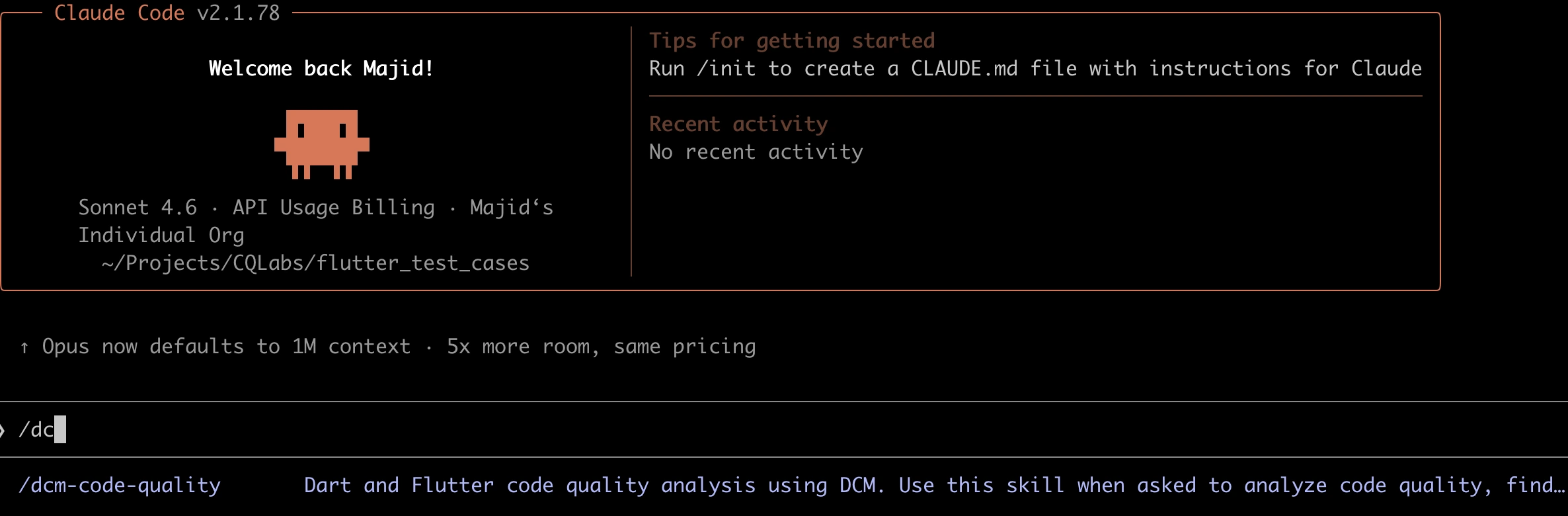
Claude Code:
claude
# Then in the session:
> Use the dcm-code-quality skill to review this project.
# Or invoke it directly:
> /dcm-code-quality
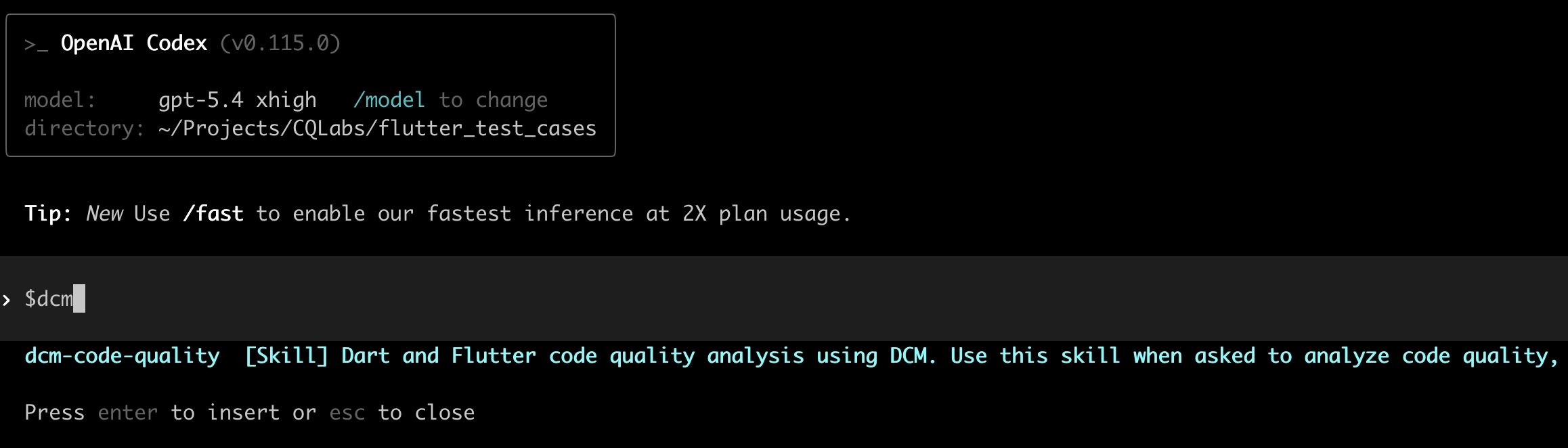
Codex CLI:
codex
# Then in the session:
> Use the dcm-code-quality skill to analyze code quality.
# Or invoke it directly:
> $dcm-code-quality
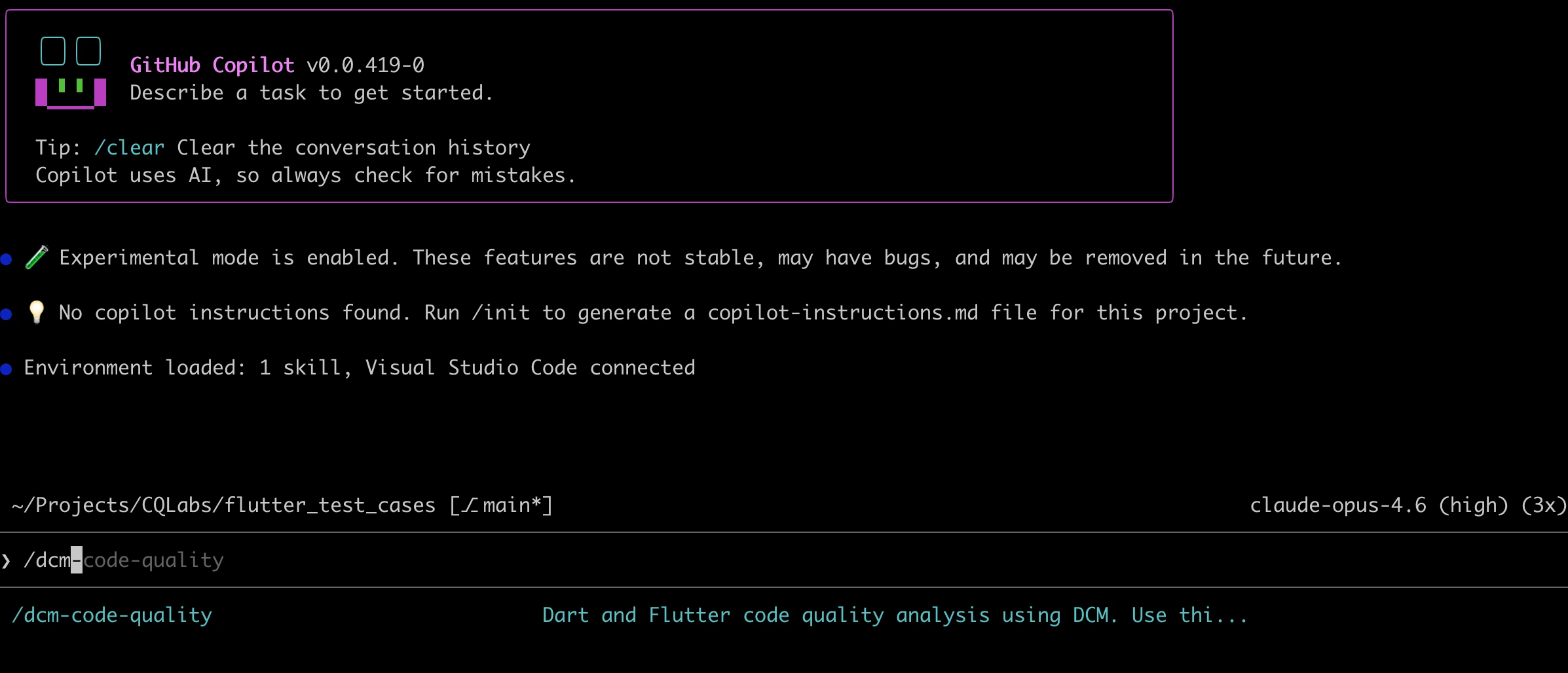
GitHub Copilot CLI:
copilot
# Then in the session:
> Use the dcm-code-quality skill to check code quality.
# Or invoke it directly:
> /dcm-code-quality
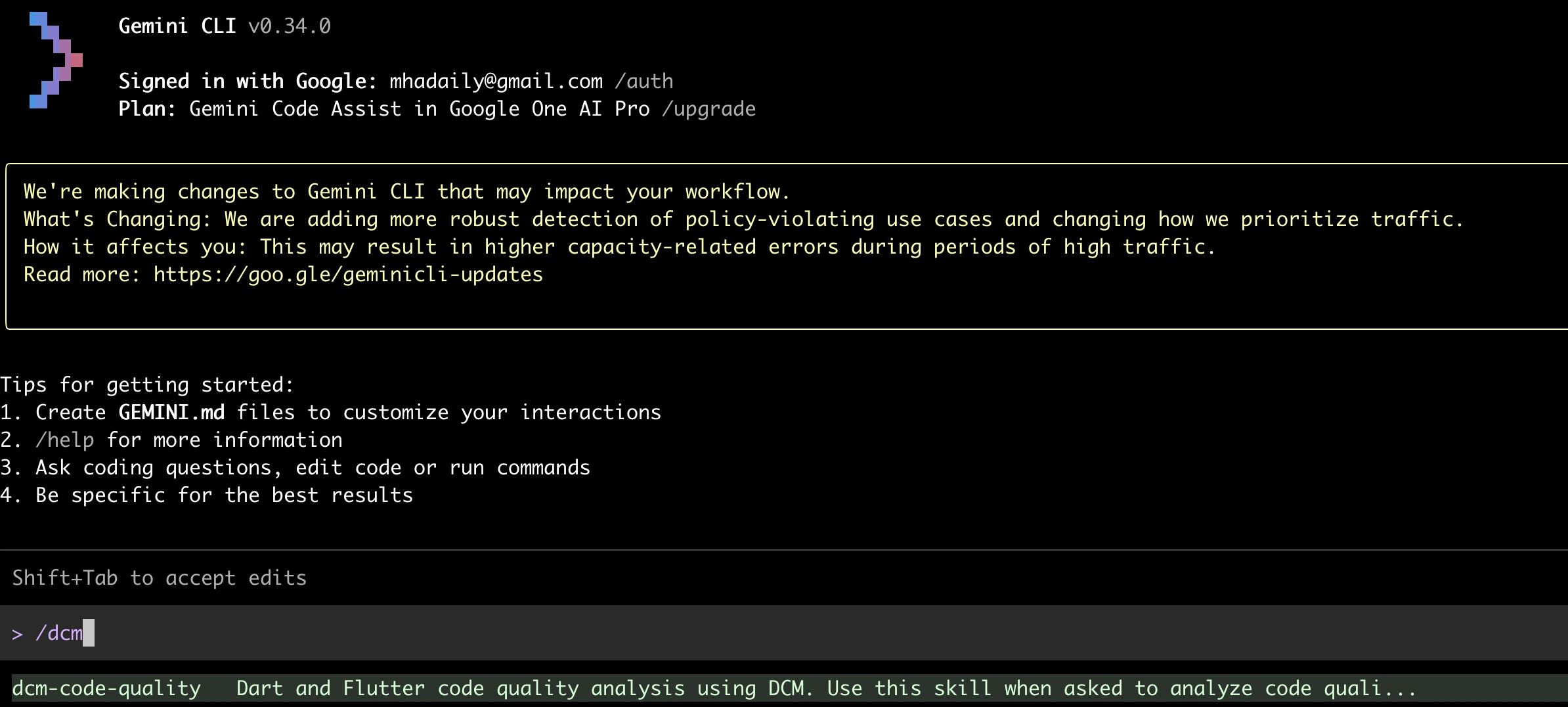
Gemini CLI:
gemini
# Then in the session:
> Use the dcm-code-quality skill to review this project.
You can also ask naturally, e.g. check my code quality with DCM, and the agent will load the skill automatically based on the description.
Personal Skills
If you want the DCM skill available across all your projects (not just one), place it in your home directory:
| Tool | Path |
|---|---|
| Claude Code | ~/.claude/skills/dcm-code-quality/SKILL.md |
| Codex CLI | ~/.agents/skills/dcm-code-quality/SKILL.md |
| Gemini CLI | ~/.gemini/skills/dcm-code-quality/SKILL.md |
| GitHub Copilot CLI | ~/.copilot/skills/dcm-code-quality/SKILL.md |
Running DCM Commands Directly
Even without a skill, you can ask any of these tools to run DCM commands. DCM must be installed and available in your terminal.
Start a session in your project directory and ask:
Run DCM analysis on the lib directory and fix all auto-fixable issues.Check for unused code in this project using DCM.Calculate code metrics for this project with DCM.
The agent will run the appropriate DCM commands and process the results.
All four tools also support non-interactive prompts:
# Claude Code
claude -p "Run dcm analyze lib and fix all auto-fixable issues"

# Codex CLI
codex exec "Run dcm analyze lib and fix all auto-fixable issues" --full-auto

# Gemini CLI
gemini -p "Run dcm analyze lib and fix all auto-fixable issues"

# GitHub Copilot CLI
copilot -p "Run dcm analyze lib and fix all auto-fixable issues" --allow-tool='shell(dcm)'
Here is an output of GitHub Copilot CLI by asking directly:
~/.../flutter_test_cases on main ✗ > copilot -p "Run dcm analyze lib and fix all auto-fixable issues" --allow-tool='shell(dcm)'
● Run dcm analyze on lib directory (shell)
│ cd /Users/mj/Projects/CQLabs/flutter_test_cases && dcm analyze lib 2>&1
└ 205 lines...

Now let me run DCM's auto-fix command to fix all fixable issues:

● Run dcm fix to auto-fix issues (shell)
│ cd /Users/mj/Projects/CQLabs/flutter_test_cases && dcm fix lib 2>&1
└ 6 lines...

Let me check what was changed and re-run the analysis to verify:

● Check what files were changed by dcm fix (shell)
│ cd /Users/mj/Projects/CQLabs/flutter_test_cases && git --no-pager diff --stat 2>&1
└ 6 lines...

● Re-run dcm analyze to verify fixes (shell)
│ cd /Users/mj/Projects/CQLabs/flutter_test_cases && dcm analyze lib 2>&1
└ 205 lines...

Let me see what was actually fixed:

● Show the actual changes made by dcm fix (shell)
│ cd /Users/mj/Projects/CQLabs/flutter_test_cases && git --no-pager diff 2>&1
└ 52 lines...

Done. `dcm fix lib` auto-fixed **4 issues** across 4 files:

1. **`03_avoid_read_inside_build.dart`** — `context.read` → `context.watch` (read inside build)
2. **`04_avoid_watch_outside_build.dart`** — `context.watch` → `context.read` (watch outside build)
3. **`01_avoid_ref_read_inside_build.dart`** — `ref.read` → `ref.watch` (read inside build)
4. **`02_avoid_ref_watch_outside_build.dart`** — `ref.watch` → `ref.read` (watch outside build)

The remaining 36 issues (31 warnings, 5 style) are in the `lint_examples/` directory and are not auto-fixable by DCM — they require manual refactoring and appear to be intentional examples of lint violations.

Total usage est: 6 Premium requests
API time spent: 30s
Total session time: 40s
Total code changes: +0 -0
Breakdown by AI model:
claude-opus-4.6-1m 141.2k in, 1.2k out, 107.6k cached (Est. 6 Premium requests)
Custom Instructions
Each tool supports project-level instruction files that are loaded into every session. Use these for general project conventions (e.g. your coding standards), and use skills for more detailed, task-specific instructions.
| Tool | File | Scope |
|---|---|---|
| Claude Code | CLAUDE.md | Loaded into every session. |
| Codex CLI | AGENTS.md | Loaded into every session. |
| Gemini CLI | GEMINI.md | Loaded into every session. |
| GitHub Copilot CLI | .github/copilot-instructions.md | Loaded into every session. |
You can add a short DCM section to your existing instructions file:
## Code Quality

This project uses DCM for Dart and Flutter code analysis.
Run `dcm analyze lib` after making changes to verify there are no new issues.
Use `--help` with `dcm` cli commands to see what's possible. e.g `dcm analyze . --help`
Use custom instructions for brief, always-relevant context (like "this project uses DCM"). Use skills for detailed workflows the agent should load only when relevant (like the full review process).
Custom Agents (GitHub Copilot CLI)
GitHub Copilot CLI supports custom agents, specialized versions of Copilot for different tasks. Unlike skills (which add capabilities), agents define a specific persona with limited tools.
Create a .github/agents/dcm-reviewer.md file:
---
description: Reviews Dart and Flutter code quality using DCM
tools:
  - shell
---

You are a code quality reviewer for Dart and Flutter projects.
Use DCM to analyze the project and report findings.

When reviewing:

1. Run `dcm analyze lib` to find lint issues.
2. Run `dcm check-unused-code lib` to find unused code.
3. Run `dcm check-unused-files lib` to find unused files.
4. Run `dcm check-dependencies lib` to verify dependencies.
5. Summarize findings and suggest fixes.
Then invoke it:
copilot --agent=dcm-reviewer --prompt "Review the code quality of this project"
For more information, see the official GitHub documentation for creating custom agents.
Tips
Be Specific with Prompts
When asking an AI CLI tool to use DCM, being specific helps the tool run the right command:
- Instead of
check my code, tryrun dcm analyze lib and show me all issues with severity error. - Instead of
clean up the project, tryrun dcm check-unused-code lib and then dcm check-unused-files lib.
Chain DCM Commands
You can ask the AI tool to run multiple DCM commands in sequence:
Run dcm analyze lib, then run dcm fix lib to auto-fix the issues, and finally run dcm analyze lib again to confirm all fixable issues are resolved.
Use the JSON Output Format
If you want the AI tool to process DCM results programmatically, you can ask it to use the JSON output format:
Run dcm analyze lib --reporter=json and summarize the issues by severity.
The JSON output format is available for Teams+ plans. See Supported Output Formats for more details.
Available DCM Commands
For the full list of commands you can use with these tools, see the CLI Commands reference.